Your tech can connect to the user’s computer right from the ticket.
Once you opt in to loginwith.me, your tech can start a remote session on a Windows computer from the Connect to Device button on the ticket’s report, the same report they’re already reading.
The free plan covers up to 25 endpoints for as long as you need it, and you won’t need a credit card.

Your tech starts from the ticket, then connects.
The ticket already shows what the computer was doing when the user asked for help, so your tech knows where to look before they connect. When they need to work on the computer itself, they click Connect to Device at the top right of the report and choose Remote Control or Remote Terminal. The connection details come from the ticket, so the user doesn’t need to enter a PIN, and your tech logs in to the computer.
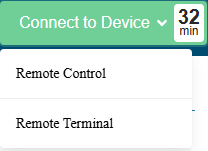
Remote access stays off until you turn it on.
Remote access through loginwith.me is optional, and it stays off until you opt in. An administrator on your account first signs our Ethical Usage Agreement, and then you turn on loginwith.me on the Remote Access Options page. You can also choose whether the remote tools appear on Diagnostic Reports, on the Device Management page, or both.
It works on Windows, and it uninstalls itself when the session is over.
Remote access through loginwith.me works on Windows computers only, and it doesn’t work on Mac. When the session is over, loginwith.me uninstalls itself from the computer.
A user can also start a session on their own when your tech gives them a Session PIN. They go to loginwith.me, select Get Help, enter the PIN, and select Start. Your tech’s display name is shown to the user, so they know who is connecting.

Remote access through loginwith.me is included at no extra cost.
The loginwith.me tool is free, on-demand remote access from Tier2Technologies, the company behind Tier2Tickets. It runs in the browser and is built on Apache Guacamole. It’s included with every Tier2Tickets account, including the free plan, and it works alongside the remote tools you already use.
Do I have to use loginwith.me?
No. It’s optional, and it stays off unless you turn it on.
Does it replace the remote tool I already use?
It doesn’t have to. You can keep your current remote tool and use loginwith.me as a backup when you need it.
Does anything stay on the user’s computer?
When the session is over, loginwith.me uninstalls itself from the computer.
You can also read about how Tier2Tickets gives you better tickets and how your tech can see what the user saw.
See a real ticket, and ask us about remote access.
We’ll give you a 10–15 minute Zoom demo of a real ticket from start to finish, and we’ll answer your questions. You can also create a free account and turn on loginwith.me yourself.